FlamePOS Configuration Manual
1. Purpose
This manual describes the administrative configuration required for FlamePOS version 1.1.0-VSMS-1.0.0. It covers business details, users, PLU/menu data, taxes, payment methods, printers, database connection, VSMS settings, and fiscal receipt configuration.
2. Configuration Responsibility
Configuration should be performed by an authorized administrator or installer. Fiscal configuration must be validated before live use. Changes to taxes, receipt templates, payment mapping, SDC endpoints, signer type, PIN, PAC, or certificate settings may affect fiscal compliance.
3. Business and Terminal Details
Open Back Office > Configuration > Business. The Business tab replaces the former Restaurant label so the same configuration applies to hospitality, restaurant, retail, and grocery deployments.
| Setting | Purpose |
|---|---|
| Business name | The taxpayer or trading name used in local receipt headers and business-facing reports. |
| Store name | Optional local branch/store identification used for non-fiscal branding. It does not override the SDC fiscal location name. |
| Address and telephone | Printed in receipt header and customer-facing documents. |
| Taxpayer identifier | Used for fiscal identification where required by the jurisdiction. |
| Terminal identifier | Identifies the POS terminal in receipt output and fiscal records. |
| Receipt footer | Optional customer message shown on receipts. |
Save and restart FlamePOS after changing local Business name or Store name. On a fiscal invoice, FlamePOS prints
the signed businessName and locationName returned by the selected SDC. These values are controlled
by the TaxCore certificate and Developer Location, not by the local branding settings.
4. User and Role Configuration
Configure users according to job function:
- Cashier: create tickets, add items, accept payment, print receipts.
- Supervisor: approve voids, discounts, refunds, and restricted functions.
- Manager: run reports, manage drawer operations, and review sales.
- Administrator: configure system settings, users, printers, database, tax, and VSMS settings.
Each user should have a unique login. Shared cashier accounts should be avoided because fiscal and operational activity must be traceable to a responsible operator.
5. PLU and Menu Configuration
5.1 Moving a menu to another till
A menu built on one FlamePOS can be carried to another as a spreadsheet. This is how a second till, a replacement machine, or a second shop is given the same products without typing them again.
On the till that has the menu
- Open Back Office → Products → Export Items to Spreadsheet.
- Choose where to save the file. It is offered as
menu-items.csv. - FlamePOS says how many items it wrote. Copy the file to the other machine.
The file holds five columns and one line per product:
Category,Group,Item,Price,Barcode
Drinks,Soft Drinks,Coca-Cola 330ml,150,9300675024235
Drinks,Soft Drinks,Bottled Water 600ml,100,
Food Cupboard,Rice and Flour,"Rice, long grain 5kg",1200,
It is a plain UTF-8 CSV and can be edited in any spreadsheet before it is imported -
which is also the quickest way to correct fifty prices at once. A name containing a
comma is quoted, as in the last line above. Blank lines and lines beginning with
# are ignored.
On the till that is to receive it
- Open Back Office → Products → Import Items from Spreadsheet and choose the file.
- FlamePOS reads it and says how many products it found, and what it is about to do. Nothing has been changed yet.
- Confirm. FlamePOS reports how many products were created, how many updated, and how many categories and groups it had to create.
What importing does, and does not, do
- It merges; it does not replace. A product already in that group keeps its picture, printer routing, modifiers and sort order, and only its price and barcode are brought up to date.
- Categories and groups named in the file are created if the receiving till does not have them.
- New products are made visible and sold in the sales modes of the business mode that till is set to.
- It is all or nothing. If any line is wrong, nothing at all is imported and the offending lines are listed with their line numbers, so a half-imported menu is never left behind.
- A line is rejected when it has fewer than four columns, when the category, group or item name is blank, or when the price is not a number or is below zero.
Tax
The spreadsheet has no tax column, and a product without a tax category cannot be sold. The receiving till asks for one instead, once, and gives it to every product the import creates:
- Where the till has one tax category, it is used without asking.
- Where it has several, FlamePOS asks which the new products should have before anything is imported. Closing that question stops the import.
- Where it has none, the products are still imported and the confirmation says they will have no tax category. They cannot be sold until one is set in Products Input.
Products the file matches to ones already on the receiving till keep the tax category they have; only new products are given the one chosen here.
The five columns are deliberate. Pictures, printer routing, modifier groups, shift prices and order types are not carried, because they are things a shop sets once on a handful of products rather than three hundred times - and they differ between one till and the next anyway.
5.2 Adding and editing products (Products Input)
Back Office → Products → Products Input lists every product as a sheet, one row each, and is the quickest way to enter or correct a delivery. The columns are the fields used daily: identifier, name, price, barcode, stock, group, tax category, sort order, button and text colour, and picture.
- Type into a cell and move on; the row is written when the cell is left.
- The blank row at the top is where a new product is typed. Its first cell says what
the row is still waiting for -
needs name,needs group,needs price,needs tax- and thenEnter to add. Nothing is written until then, so a half-typed product is never created. - Press Enter, or the first cell, to add the product. A fresh blank row takes its place so the next product can be typed straight away.
- The group and tax category are chosen from lists rather than typed.
- Colour and picture cells open a colour chooser and a file chooser.
Anything not in the sheet - order types, printer group, description, shift prices, modifier groups - is on the product's own Edit window, which the sheet does not replace.
5.3 Tax category is required
Products created before this version may still have no category. An administrator should check the product list once after upgrading and give a category to anything missing one.
5.4 Products sold in more than one form
A product that is sold by size, by crust, or in any other set of forms is an ordinary product with a compulsory modifier group attached:
- Create the product with the price of its cheapest form.
- Create a modifier group for the choice and, in it, one modifier per form. Each modifier carries the difference between its form and the product's own price, so the cheapest form adds nothing.
- Attach the group to the product with a minimum and maximum of one, which is what makes the till ask for the choice as soon as the product is pressed.
The price a customer pays is the product's price plus the chosen modifier's. Both appear on the receipt and both are declared, so the tax on each is calculated and rounded on its own line.
PLU/menu data should be configured before live use:
- Create menu groups and categories.
- Create items with item name, price, tax assignment, and order type behavior.
- Enter the product GTIN in the item Barcode / GTIN field when a GTIN is available.
- Create modifier groups and modifiers for the choices a product offers, and cooking instruction options where required. A product sold in more than one form - by size, by crust, by portion - is configured as a product with a compulsory modifier group rather than as a kind of its own.
- Configure item availability by terminal or shift if used.
- Test representative items before live operation.
| PLU field | Fiscal use |
|---|---|
| Item name | Sent as the TaxCore invoice item name. |
| Barcode / GTIN | Stores the Global Trade Item Number for the item. Values from 8 to 14 characters are sent in the TaxCore invoice item gtin field when the item is fiscalized. |
| Price | Sent as VAT-inclusive unit price and used to calculate fiscal totals. |
| Tax assignment | Mapped to the active TaxCore tax label for the item. |
PLU changes must be controlled by authorized users. Item price, tax label, and item name changes affect fiscal
invoice content. Barcode / GTIN changes affect the item gtin value sent to TaxCore. These changes
should be logged or documented by the business.
During sale entry, the operator selects the configured category, then the configured menu group, and then the named item button. The button displays the PLU/menu item name configured here. Selecting it adds that product or service to the active ticket; GTIN barcode scanning is an additional selection method and is not required for name-based menu selection.
5.5 Price lookup and two-decimal rounding
When a PLU/product or service is selected, FlamePOS looks up the applicable order-type price, shift price, or base item price and immediately rounds that unit price to two decimal places using ROUND_HALF_UP. The third decimal digit determines the result: values from 0 through 4 round down, and values from 5 through 9 round up. Whole-number and one-decimal prices are displayed with two decimal places.
| Price obtained during lookup | Price used by FlamePOS | Reason |
|---|---|---|
10.124 | 10.12 | Third decimal is 4, so the value rounds down. |
10.125 | 10.13 | Third decimal is 5, so the value rounds up. |
25.675 | 25.68 | Third decimal is 5, so the value rounds up. |
10 | 10.00 | Currency output uses two decimal places. |
FlamePOS also applies two-decimal half-up rounding to item subtotals, discounts, tax amounts, line totals, ticket totals, paid and due amounts, and monetary values serialized in the TaxCore invoice request. The rounded unit price shown on the ticket is therefore the unit price used for fiscal invoice calculation and submission.
6. Tax Configuration
FlamePOS obtains the active fiscal tax rates and labels directly from the selected SDC. During application
initialization and again before building every fiscal invoice, it makes a mode-authenticated
GET /api/v3/status request using E-SDC PIN activation or V-SDC client certificate/PAC, reads
currentTaxRates, and replaces its in-memory active tax-rate cache with the returned group. A locally
defined default fiscal rate or label is not used.
| Tax setting | Runtime rule |
|---|---|
| Tax source | Selected SDC /api/v3/status response, field currentTaxRates. |
| Tax category link | Each local tax record is linked internally to its stable fiscal label from the active SDC group. |
| Automatic synchronization | FlamePOS overwrites the local calculation percentage with the current rate returned for that SDC label. No administrator action is required. |
| Validation | If the linked label is absent, the response is invalid, or a category cannot be resolved unambiguously, FlamePOS stops initialization or fiscalization and displays an error. |
| Refresh | The active group and local calculation cache are synchronized at application startup and immediately before every Normal, Advance, Proforma, Training, Refund, and Copy fiscal request. |
| Price includes tax | Menu item prices are configured as VAT-inclusive for this release and must be tested using inclusive total values. |
| PLU tax assignment | The administrator assigns the applicable tax category to the PLU; FlamePOS obtains that category's current percentage and fiscal label from the SDC. |
The local TAX.RATE value is a synchronized calculation cache, not a fiscal configuration source.
If that percentage is changed manually or by imported data, the next automatic synchronization resets it to the
current value returned by the SDC for the linked label. When VSMS is enabled, the Tax Explorer is read-only and
states that rates are managed automatically from the active SDC configuration.
6.1 Displaying the currently active tax rates on demand
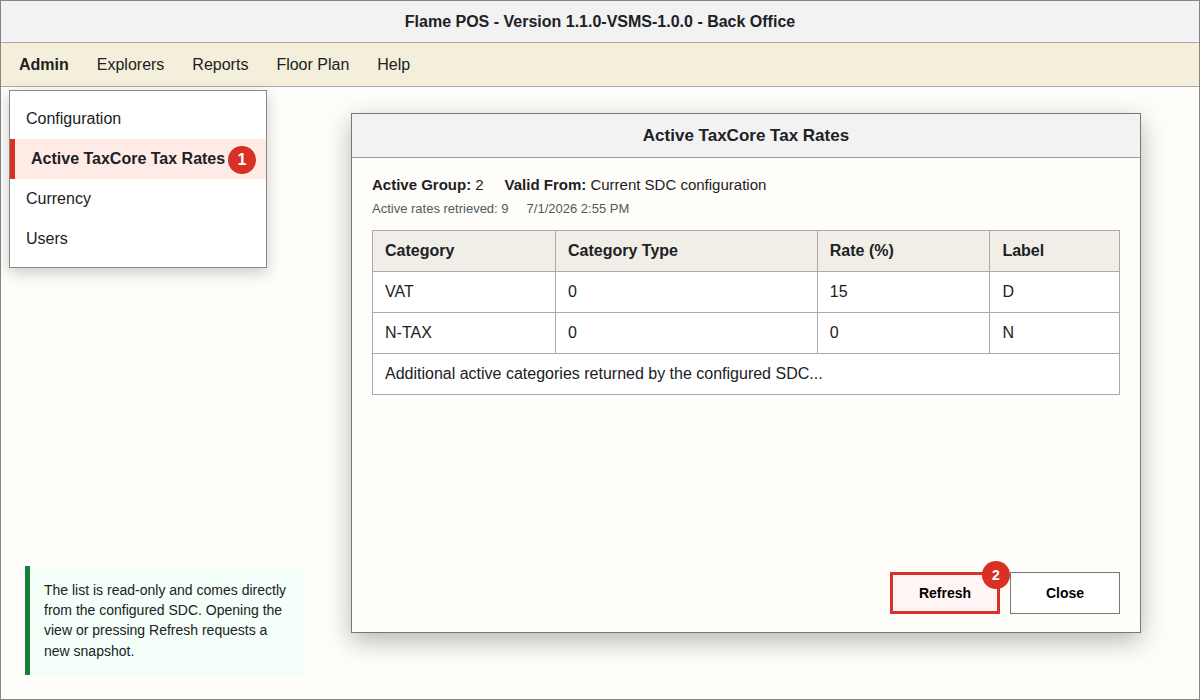
A user with administrative Back Office permission can retrieve and review the currently active selected-SDC tax-rate group at any time:
- Sign in to FlamePOS using an authorized administrator account.
- Open Back Office.
- Select Admin > Active TaxCore Tax Rates.
- Wait while FlamePOS makes a new authenticated request to the configured SDC.
- Review the active group ID, activation date/time, category, category type, percentage, and fiscal label.
- Select Refresh to request the current list again. The retrieval time shown below the table confirms when the displayed snapshot was obtained.
- Select Close when review is complete.
This view is read-only. It displays the values returned by the SDC and cannot be used to create or modify fiscal rates. If retrieval fails, FlamePOS displays an error and does not substitute locally configured values.
7. Payment Method Configuration
FlamePOS supports every payment type in the TaxCore invoice request model. Cash, Card, and Gift/Voucher are
available directly on the payment screen. Check, Wire Transfer, Mobile Money, and Other are configured custom
payment choices opened through the OTHER payment button. The selected custom payment name is
retained on the POS transaction and mapped to the corresponding TaxCore PaymentType.
| FlamePOS payment method | TaxCore fiscal payment type | Configuration key |
|---|---|---|
| Other | Other | vsms.payment.OTHER |
| Cash | Cash | vsms.payment.CASH |
| Card, including external/manual authorization | Card | vsms.payment.CREDIT_CARD and vsms.payment.DEBIT_CARD |
| Check or cheque | Check | vsms.payment.CHECK and vsms.payment.CHEQUE |
| Wire or bank transfer | WireTransfer | vsms.payment.WIRE_TRANSFER and vsms.payment.BANK_TRANSFER |
| Gift certificate or voucher | Voucher | vsms.payment.GIFT_CERTIFICATE and vsms.payment.VOUCHER |
| Mobile money | MobileMoney | vsms.payment.MOBILE_MONEY and vsms.payment.MOBILE_PAYMENT |
7.1 Required custom payment records
The database creation and update process installs the following custom payment choices if they do not already exist. Administrators can review them in Back Office > Explorers > Custom Payment.
| Custom payment name | Reference requirement |
|---|---|
| CHECK | Required: check number |
| WIRE TRANSFER | Required: transfer reference |
| MOBILE MONEY | Required: mobile transaction reference |
| OTHER | Optional payment reference |
Do not rename these records without adding the corresponding vsms.payment.<NORMALIZED_NAME>
mapping. Test all seven payment types after changing payment names or fiscal configuration.
7.2 Multiple payment types on one invoice
FlamePOS records each partial settlement as a separate POS transaction. If a ticket is paid using two or more
methods, the ticket remains open until its due amount reaches zero. Final fiscalization submits all positive credit
transactions for the ticket as separate entries in the TaxCore Payment array. The sum of those entries
must equal the amount retained for the invoice.
Test this configuration with at least two different methods, such as Cash and Card. Confirm that the stored request JSON and fiscal receipt contain both payment methods and their individual amounts.
8. VSMS / TaxCore Configuration
Set vsms.sdc_type to exactly one active signer: ESDC or VSDC. Settings for
both modes may be retained securely in the configuration, but only the selected mode is used. Restart FlamePOS
after changing the signer. There is no automatic cross-signer fallback.
| Setting | Description |
|---|---|
vsms.sdc_type | ESDC or VSDC; selects the only signer used for an invoice attempt. |
vsms.esdc.base_url | Local or Dev E-SDC endpoint used for status and invoice requests. |
vsms.esdc.pin | Assigned E-SDC card PIN sent only to /api/v3/pin. It is never sent as a PAC header. |
vsms.vsdc.base_url | HTTPS V-SDC endpoint used for authenticated status and invoice requests. |
vsms.vsdc.certificate.path | Path to the PKCS#12 client certificate used for V-SDC mutual TLS. |
FLAMEPOS_VSMS_VSDC_CERTIFICATE_PASSWORD | Protected runtime environment variable containing the V-SDC client-certificate password. It overrides the equivalent configuration property and is not written to the public configuration file. |
FLAMEPOS_VSMS_VSDC_PAC | Protected runtime environment variable containing the PAC header value used only for V-SDC requests. It overrides the equivalent configuration property. |
| Environment | Sandbox for testing; production for live fiscal operation. |
| Timeout | Maximum wait time for the selected SDC response before showing an error. |
| Approved POS identity | 1083/1.1.0-VSMS-1.0.0 is embedded in the release and sent as the TaxCore InvoiceNumber/printed POS Number. It is not customer-configurable and is not shown in Activation & Maintenance. |
| Failure handling | If the selected SDC is unavailable or rejects the request, FlamePOS shows an error and does not retry through the other signer or store a successful fiscal invoice for that attempt. |
vsms.enabled=true
vsms.sdc_type=ESDC
vsms.esdc.base_url=http://<esdc-host>
vsms.esdc.pin=<assigned-pin>

# Non-secret settings retained for an authorized switch to V-SDC:
vsms.vsdc.base_url=https://<vsdc-host>
vsms.vsdc.certificate.path=/secure/path/client.pfx

# Supply V-SDC secrets through the protected process environment:
FLAMEPOS_VSMS_VSDC_PAC=<protected PAC>
FLAMEPOS_VSMS_VSDC_CERTIFICATE_PASSWORD=<protected PFX password>
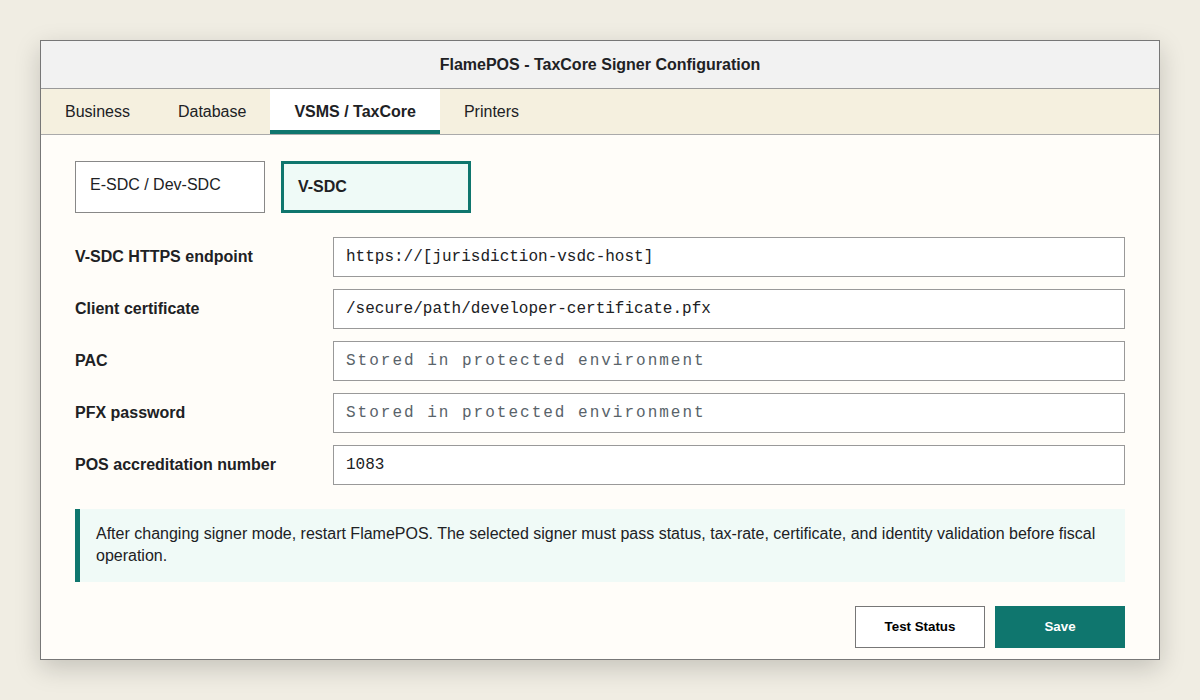
After entering VSMS settings, restart FlamePOS. During initialization, FlamePOS retrieves selected-SDC status, links each local tax category to an active returned label, and synchronizes its calculation percentage. FlamePOS repeats this process before each fiscal request. A sale must not be finalized if status/tax-rate synchronization fails, if a PLU tax category does not resolve to an active returned label, or unless a valid fiscal response is received and stored.
9. Receipt Template Configuration
Receipt templates define how fiscal invoices are printed. The fiscal receipt template must include all required
fiscal fields, including invoice number, invoice counter, fiscal date/time, tax labels, total amount, payment
amounts, verification QR code, and copy/refund markings. The taxpayer business name and location name are taken
directly from the signed SDC response. For the submitted Headquarters Developer Location, both values are
Wok & Flame, so the two required identity lines intentionally contain the same text. The POS Number is
1083/1.1.0-VSMS-1.0.0. The verification URL is stored for audit but is not printed. The title line
END OF FISCAL INVOICE is printed below the QR code. Copy receipts must show the TaxCore Copy
invoice type, the Copy/Sale or Copy/Refund transaction type, and original/reference invoice information.
If templates are modified, print test receipts and verify that all mandatory text and QR fields fit on the receipt paper and remain readable.
10. Printer Configuration
The fiscal receipt template is 226 points wide (approximately 79.7 mm) and is configured for an 80 mm thermal paper roll. This falls within the portal's 57 mm to 80 mm paper-roll category. Fiscal printing on paper rolls up to 57 mm or on A4 paper is not included in this configuration.
- Configure the operating system printer first.
- Select the receipt printer in FlamePOS.
- Configure kitchen and report printers if used.
- Print a test receipt.
- Verify that the QR code scans. Confirm that the verification URL is not printed as receipt text.
11. Database and Backup Configuration
Configure database connection settings during installation. The database stores tickets, transactions, users, PLUs, configuration, and fiscal audit records. Backup procedures should protect operational and fiscal records from loss.
- Back up the database daily or according to business retention policy.
- Back up receipt templates and configuration files after each approved change.
- Protect backups containing fiscal records and credentials.
12. Change Control
Changes to the following areas should be controlled and tested because they affect what is sent to the revenue office:
- Fiscalization request creation.
- Tax labels and tax rate mapping.
- Receipt layout, QR printing, POS Number, SDC business/location fields, and the end-marker position.
- Refund and copy handling.
- Payment type mapping.
- Version number and release package.
- E-SDC PIN handling, V-SDC certificate/PAC handling, signer selection, and endpoint settings.
13. Recommended Validation After Configuration
- Confirm version
1.1.0-VSMS-1.0.0in the application. - Confirm local Business name and Store name on non-fiscal branding where applicable.
- Confirm the fiscal receipt prints the selected-SDC
businessNameandlocationName. For the submitted Headquarters location, both lines readWok & Flame. - Confirm the displayed signer is the intended
E-SDCorV-SDCand its status check succeeds. - Configure at least one test PLU with a valid Barcode / GTIN value and confirm it is accepted in the selected-SDC invoice request.
- Create a normal sale and scan the verification QR code.
- Create a refund referencing the original sale.
- Print a receipt copy and confirm a TaxCore Copy invoice is created, stored, and printed with the original/reference invoice.
- Run a daily sales report and reconcile with fiscal invoices.